
When a password change is required
- You're a new Ostaff account holder
- You received an email from "no-reply@ohiolink.edu" reminding you that your password will expire
What to know
- Password expire every six months.
We will send you three reminder emails.
- Your username is your email address where you receive password reset mail from no-reply@ohiolink.edu.
This is your institutional email address that we entered when your Ostaff account was originally created.
- If you cannot find a password reset mail in your inbox, check Outlook rules which may funnel mail to a different folder. You may also need to check junk or spam folders.
Note: OhioLINK can confirm that our system sent you mail, but we have no visibility into your institution's email system. Please work with your IT team if you cannot receive our mail. But if you are completely stuck, open an OhioLINK support ticket and we will do our best to assist.
- Only an account owner can change their own password.
OhioLINK cannot change anyone's password.
- If your password expires, you won't be able reset your password. Please open an OhioLINK support ticket requesting help.
Steps
Summary
- Go to Member Portal
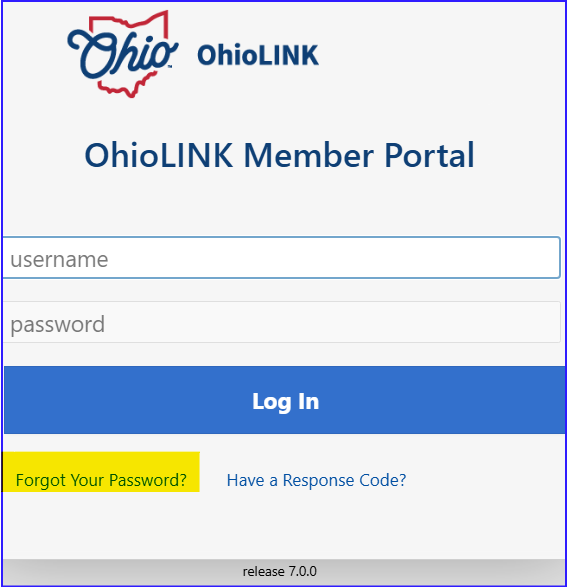
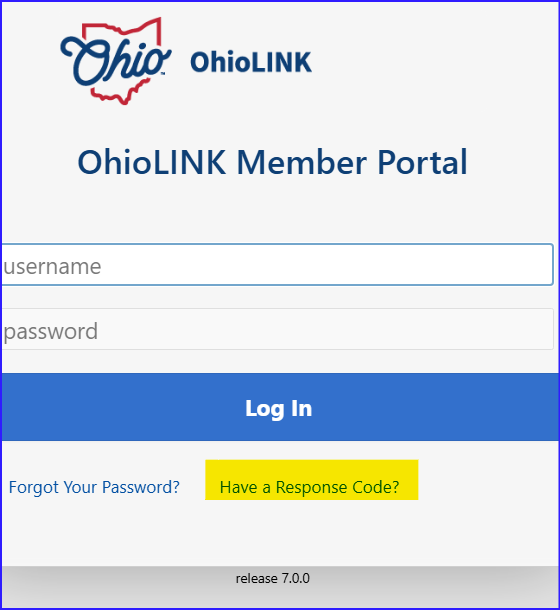
- Under the Login button, click "Forgot Your Password?
- Enter your username (email address) and click Submit. Keep your brower open.
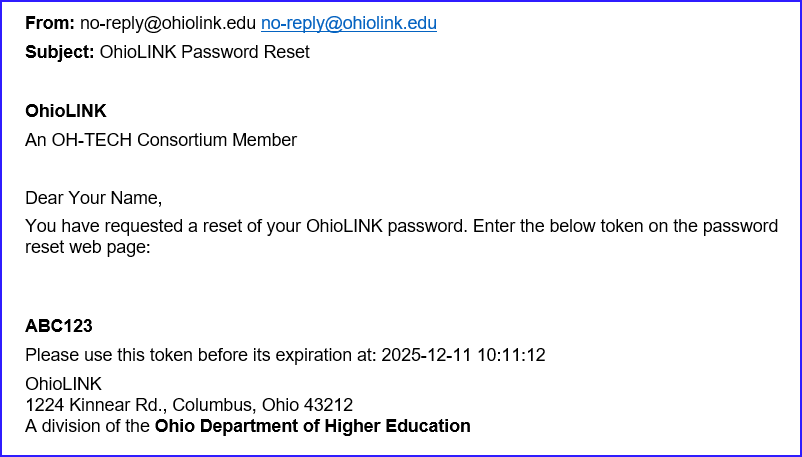
- Look for an email titled "OhioLINK Password Reset" in your mailbox. The sender is no-reply@ohiolink.edu.
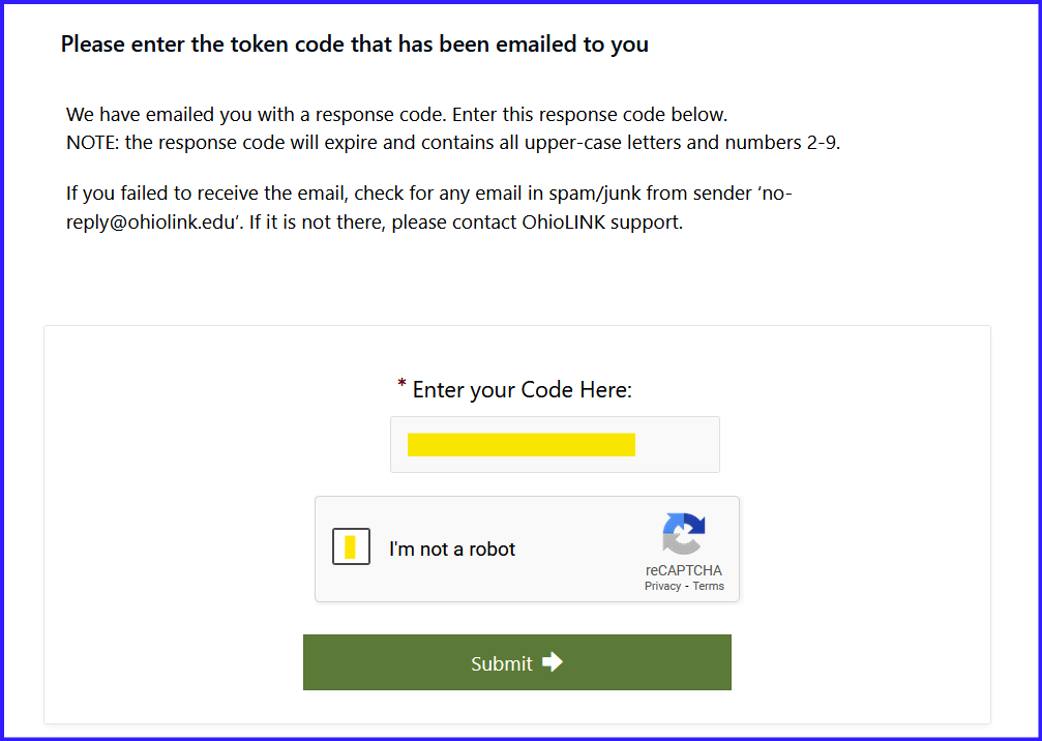
If you kept your browser open, you should see a screen titled "Please enter the token code that has been emailed to you".
If you didn't keep your browser open, go to Member Portal and under the Login button, click "Have a Response Code?" - Type your new password.
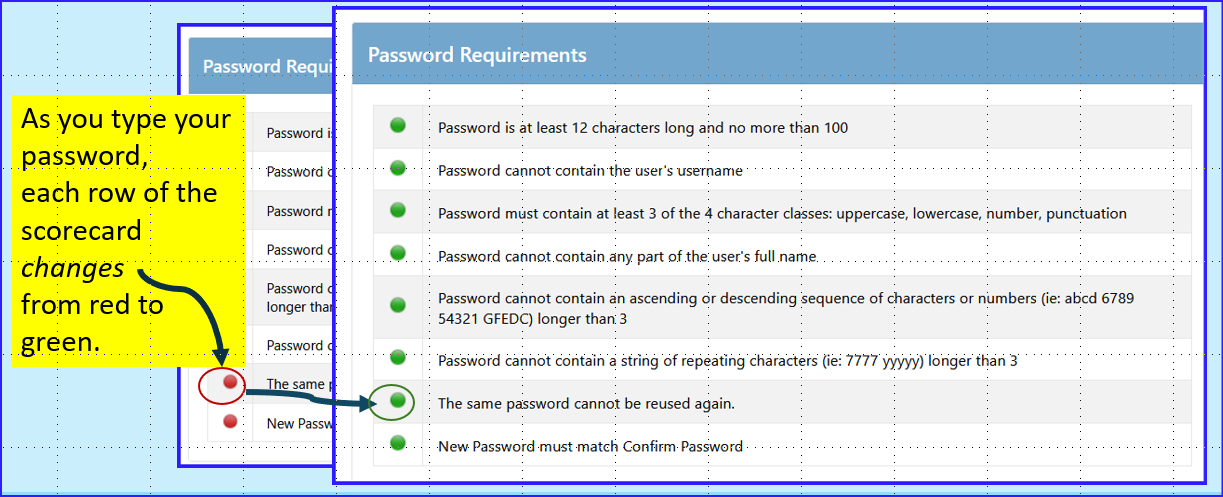
The right hand "scorecard" contains passwords requirements such as minimum password length (12 characters) and so forth.
As you type, each row of the scorecard changes from red to green as you meet the requirements. - When you're done, you should see a pop-up message with a checkmark indicating your password change was submitted
- Please wait 5 minutes before logging in with your new password.
Details
Step 1 - Start from either the Member Portal or Ostaff login page.
There are two different ways to begin.
a) From the Member Portal login page, click Forgot Your Password?
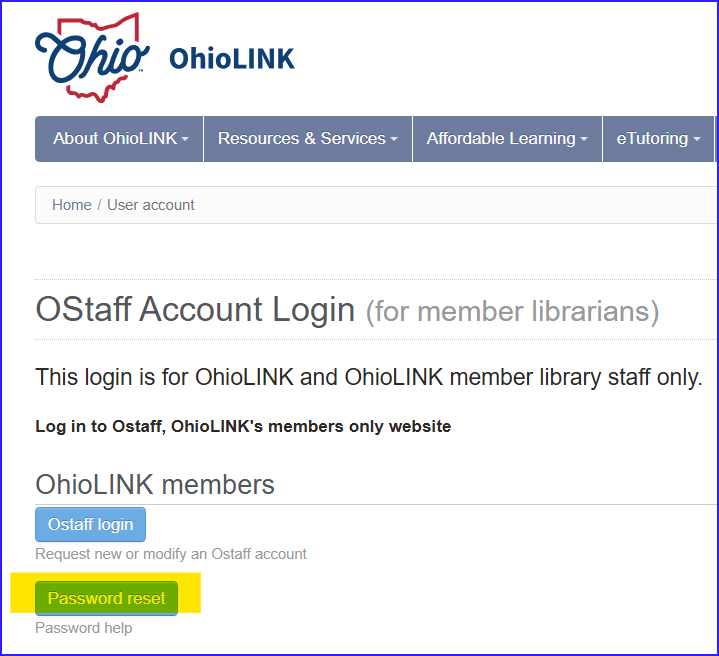
b) Or, from the Ostaff login page, click Password Reset.
Either link will take you to the “Forgot Password” form.
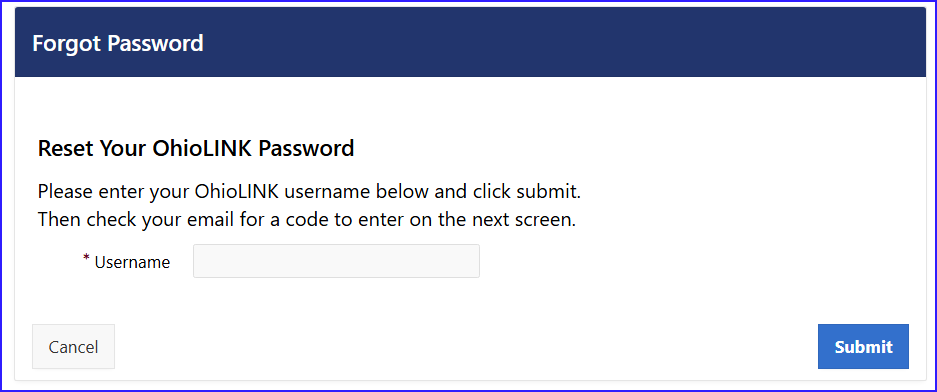
Enter your username (email address) and click Submit.
Remember to use your institutional email address that we entered when your Ostaff account was originally created.
Keep your browser open.
Step 2 - Find your password reset mail
Look for an email titled "OhioLINK Password Reset" in your mailbox.
The sender is no-reply@ohiolink.edu.
The example email below contains token code ABC123.
Note - Tokens expire after 3 hours.
You will need the token code from your email for the next step.
Step 3 - Enter the token code from the password reset mail.
If you kept your browser open, you should see a screen titled "Please enter the token code that has been emailed to you".
- If you closed your browser, don't panic!
From the Member Portal login page, click Have a Response Code?
At the screen show below, enter your password reset token code and click “I’m not a robot”. Click Submit.
Step 4 - Enter your new password.
Type your new password.
The right hand "scorecard" contains passwords requirements.
As you type, each row of the scorecard changes from a red cross to a green checkmark as you meet the requirements.
For example, a password must be a minimum of 12 characters, and so forth.
If you don't meet the requirements -- that is, one or more rows contains a red cross -- you won't be able to reach the field to
Step 5 - Done! Your password change was submitted.
You should see a pop-up message with a checkmark indicating your password change was submitted.
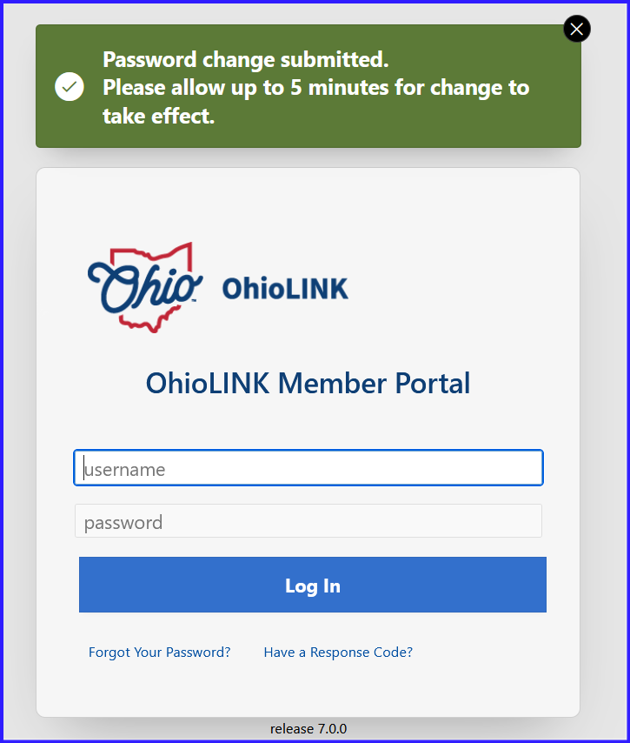
Please wait 5 minutes before logging into either Member Portal or Ostaff with your new password.